After your purchase, you’ll receive a confirmation email showing:
The number of available licenses
A Login to Portal button
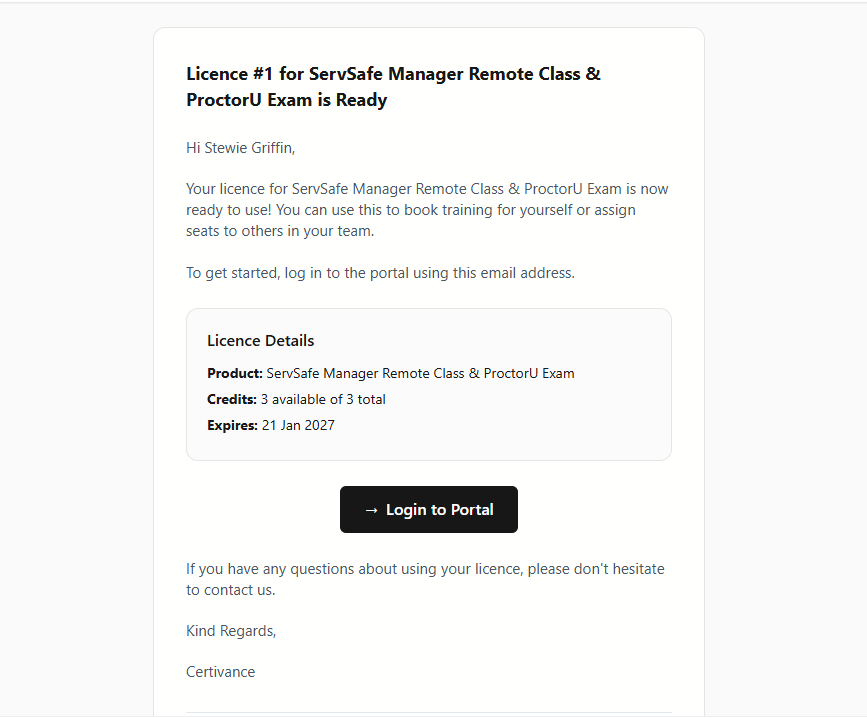
Click Login to Portal in the email to access your account dashboard.
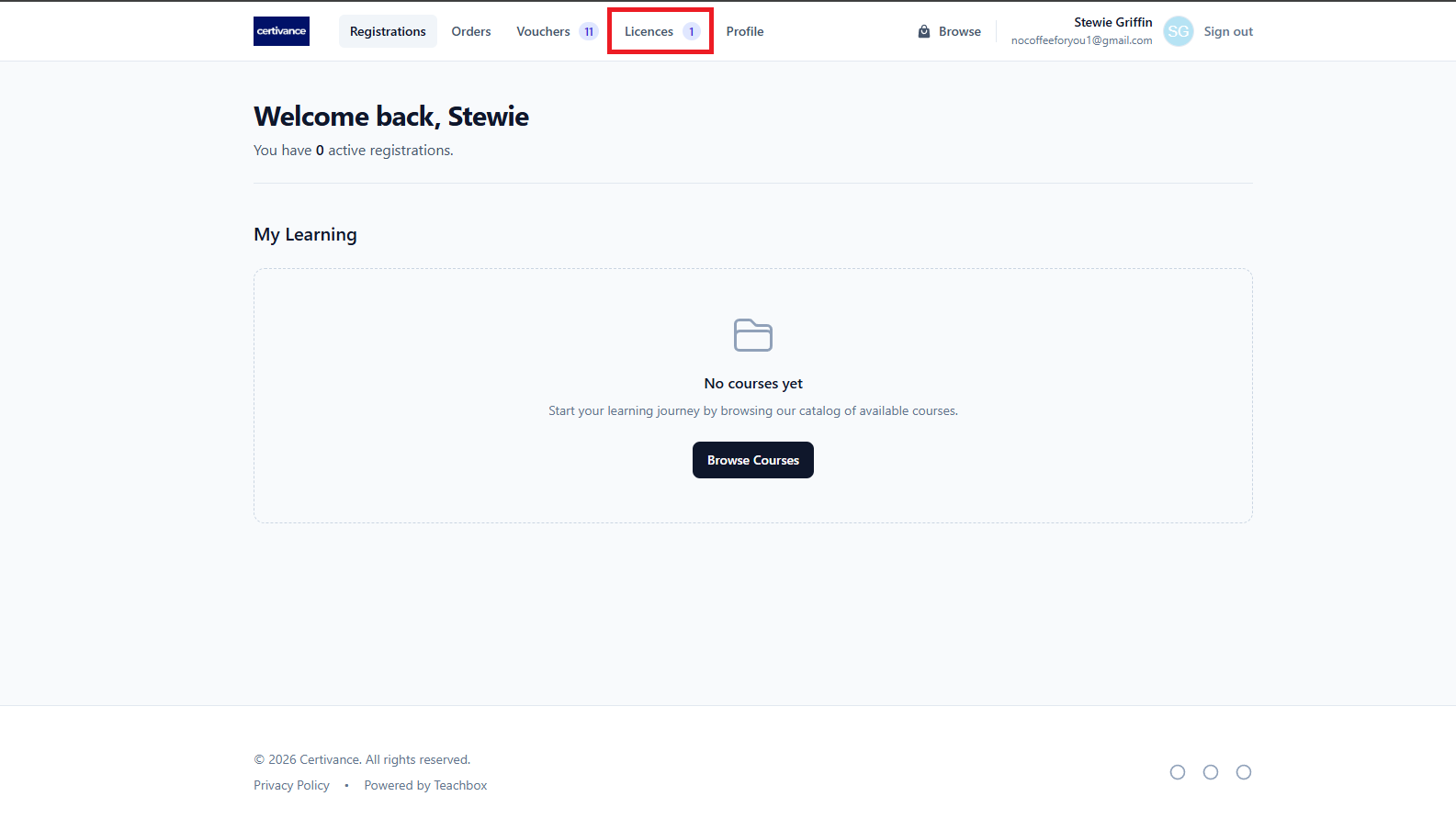
Once logged in, select the Licenses tab from the portal menu.
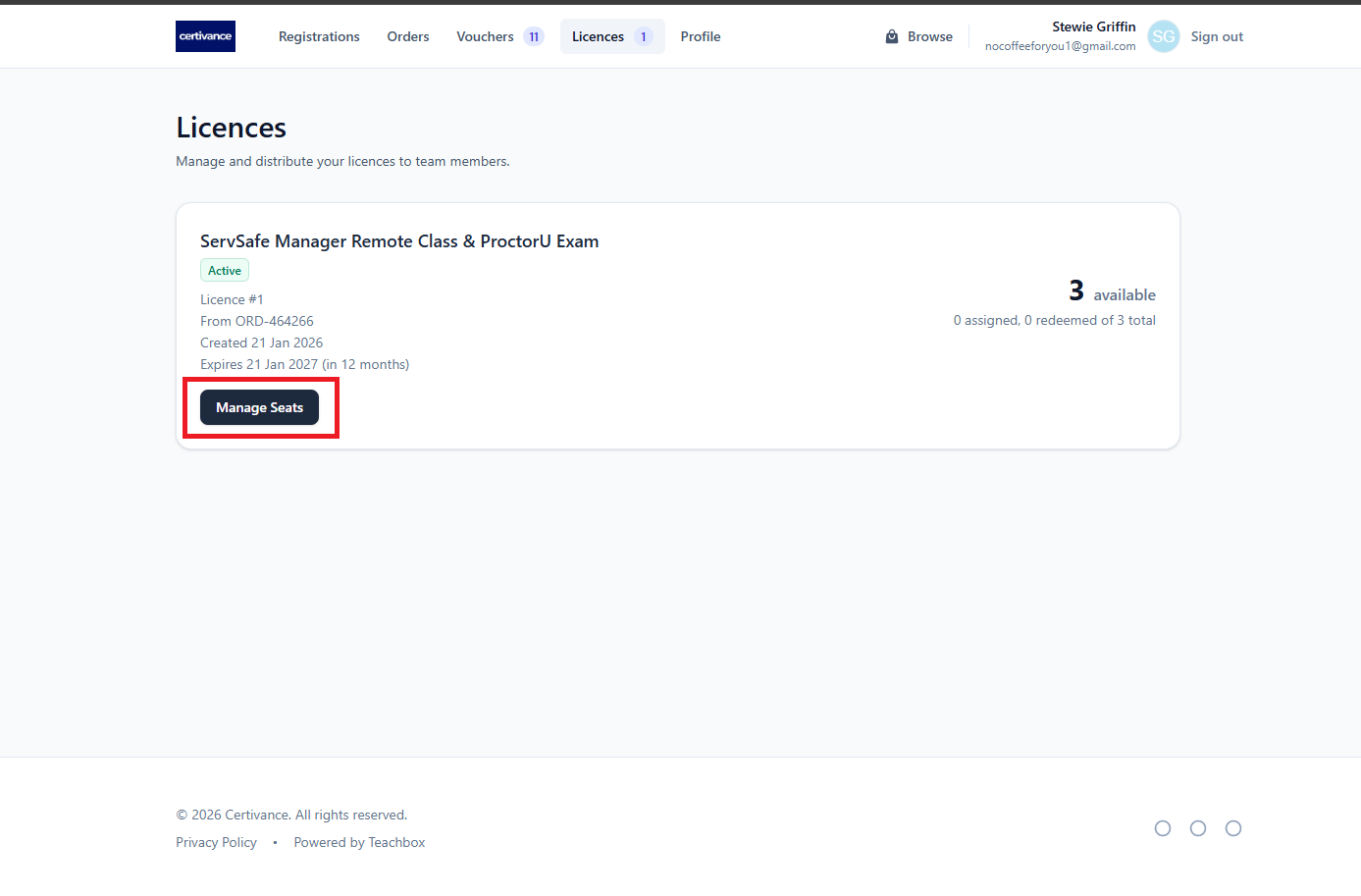
From the Licenses screen, locate the Class Pass you purchased and click Manage Seats.
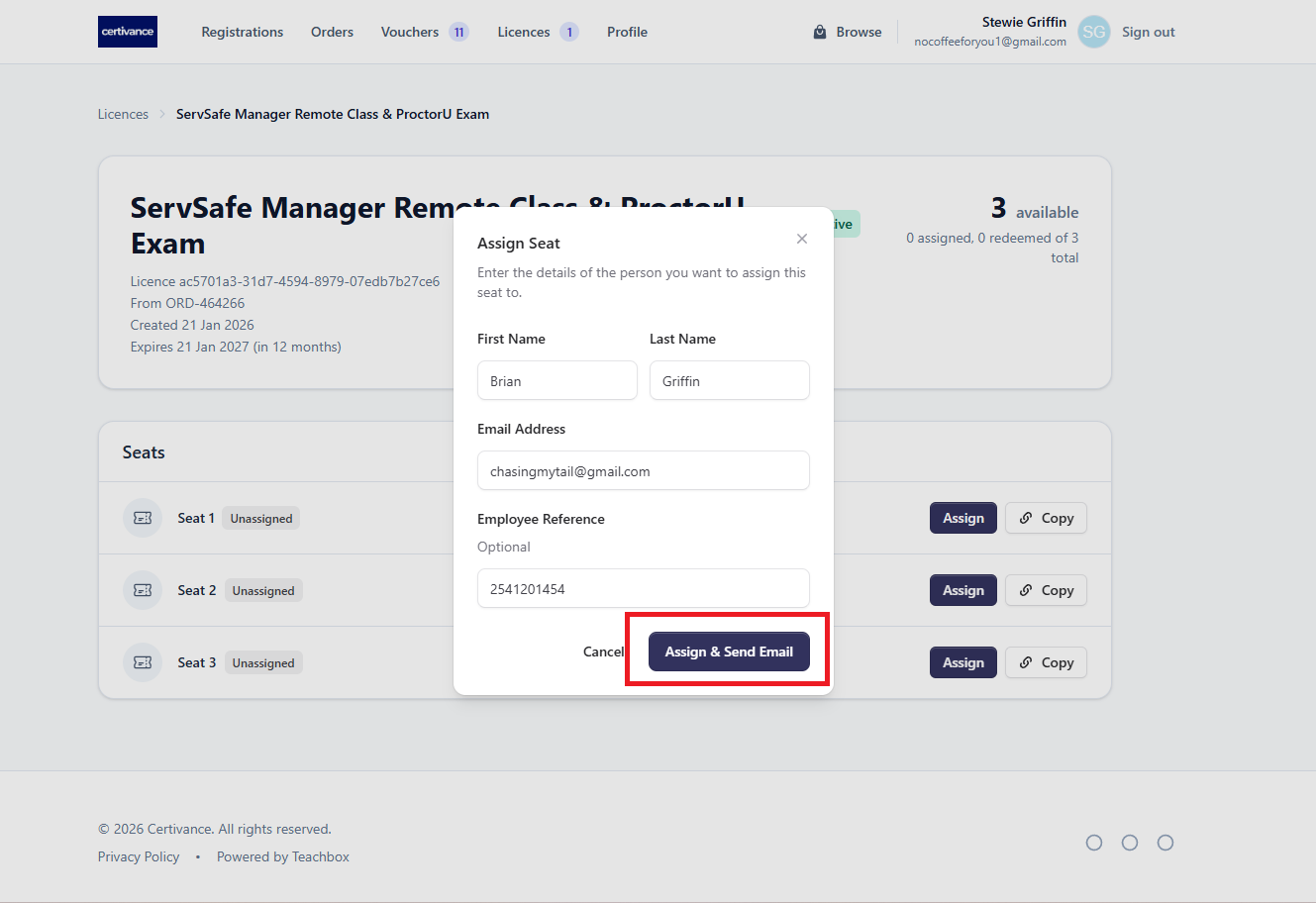
On the license page, click Assign next to an available seat.
A pop-up will appear where you can enter:
Employee name
Employee email address
Optional employee ID or reference
Click Assign and Send.
The employee will receive an email with instructions to:
Pick an available class date
Complete enrollment
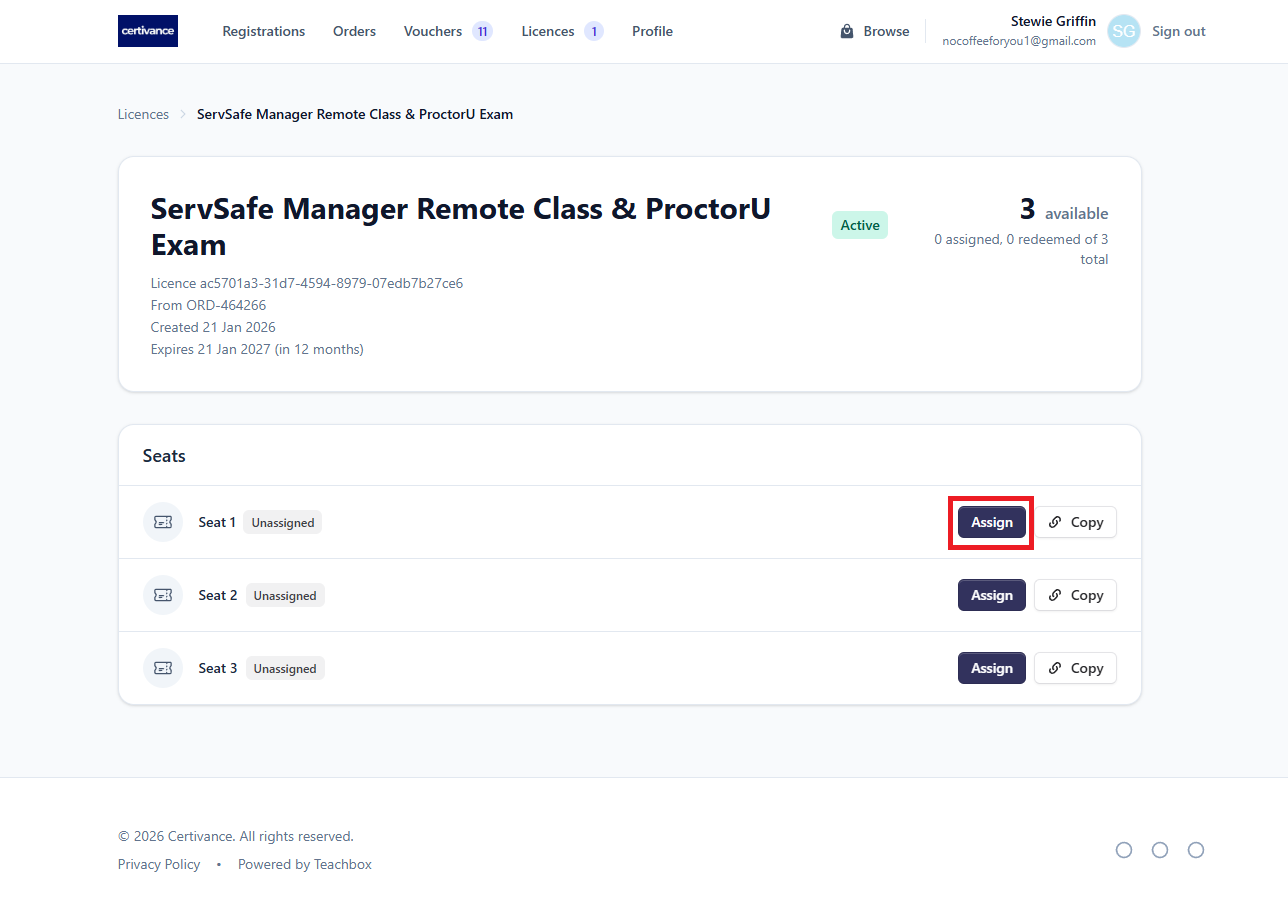
Instead of assigning a seat directly, you can click Copy Link next to an unassigned license.
You can then:
Paste this link into an email or message
Send it to the learner directly
When the recipient opens the link, they can:
Choose a class date
Enroll using the assigned license
Each license can only be used once
Licenses must be assigned or redeemed before class enrollment
Learners cannot attend class until a license is assigned or redeemed
Learner will receive an email with a list of class dates to choose from