Before your exam begins, make sure you are in a private, quiet location with a clean desk or table.
Please remove:
Headphones or earbuds
Smartwatches or smart devices
Non-religious headwear
You may not test from a couch or overstuffed chair. A standard kitchen or office chair is acceptable. Your proctor will visually confirm that your testing area meets requirements before continuing.
You must have a government-issued or school photo ID available. Your proctor will use this to verify your identity before allowing you to proceed.
About 20 minutes before your scheduled exam time, open the Guardian browser, log in to your ProctorU account, and start your exam session.
This allows enough time for setup and identity verification before your exam begins.
Follow the on-screen prompts to download the required software. This software allows ProctorU to:
Secure your testing environment
Access your camera and microphone
Test your internet connection
If you need technical assistance at this stage, use the Support option inside the Guardian browser.
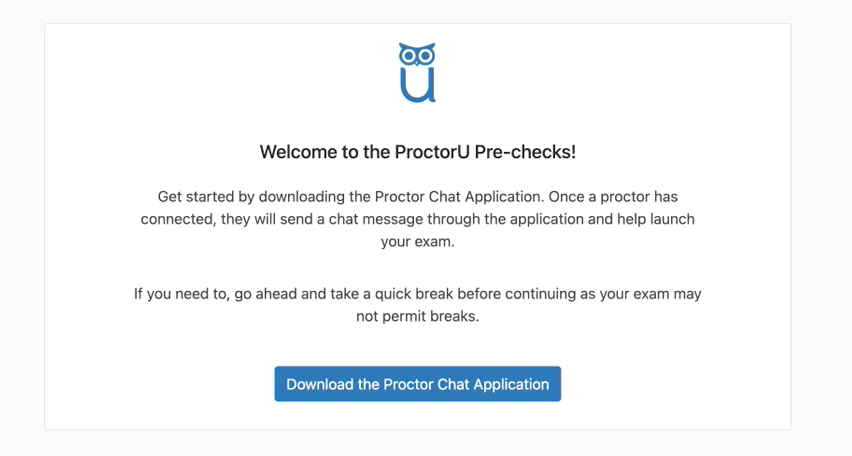
You will be connected to a live proctor through chat. Your proctor will:
Verify your identity
Review your testing environment
Guide you through the remaining setup steps
They will stay connected with you throughout the exam.
When instructed by your proctor, log in to your ServSafe account.
Have your Exam Access Code ready. This code is emailed to you on the day of your class or provided by your instructor or administrator.
After logging in to ServSafe, you or your proctor must enter the following secure link inside the Guardian browser to access your exam:
https://www.servsafe.com/ss/Exams/ProctorU/TakePUOnlineExam.aspx
Important:
If this link is not used, you will receive an “Invalid access code” error—even if your code is correct.
If you see this error, copy and paste the link above into the Guardian browser after logging in to ServSafe.
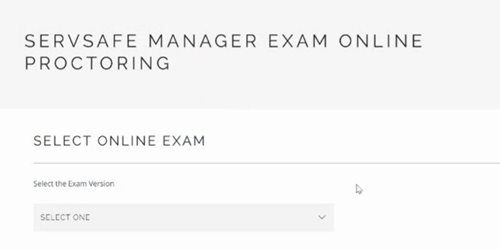
Choose the correct exam version and your preferred language, then continue when prompted.
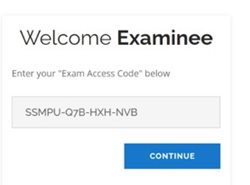
Accept the Examinee Test User Agreement by selecting I Accept. Enter your Exam Access Code and select Continue.
Your Exam Access Code:
Starts with SSMPU
Uses ALL CAPITAL LETTERS
Includes dashes
Be sure there are no extra spaces or punctuation. Your proctor may allow you to open your email to copy and paste the code directly.
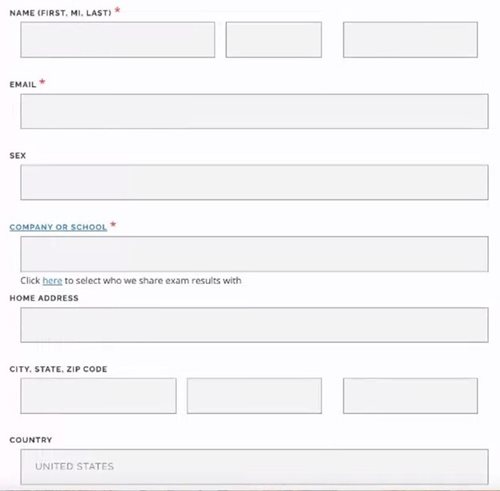
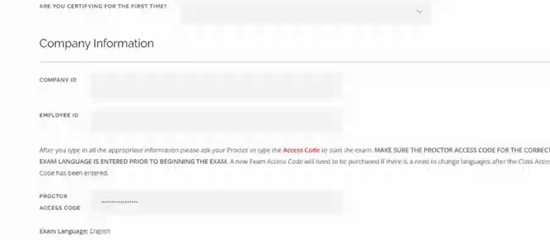
Complete the Examinee Personal Information page.
When selecting your company, school, or organization:
Choose your organization if it appears
If it does not appear, select ServSafe ProctorU
Your proctor will enter their Proctor Access Code. Once entered, your exam will unlock and begin.
You have 2 hours to complete your exam.
Once finished, you can review your answers on the Answer Review screen. When ready, select Submit to send your exam for grading.
You will receive a pass/fail notification immediately. Official results are emailed to you and can also be viewed by logging into ServSafe and selecting Scores in the upper-right corner.
You can print your ServSafe Food Protection Manager certificate right away:
Log in to ServSafe
Select Certificates
Choose View or Print Certificate
If you do not pass, you may retake the exam according to ServSafe’s retesting policy. A new exam purchase is required.
Retesting policy summary:
Up to 2 attempts within 30 days
A 60-day waiting period after the second attempt
Maximum of 4 attempts within a 12-month period